This page does not have a translation yet.

Free test server with Google Compute Engine
Free hosting for a test version of your website
You might want to try WP BOX on a production-like environment before actually using it on production. And here is a nice opportunity to do so. Google Compute Engine is a cloud based virtual machines service, where you can rent system resources (CPU, RAM, disk space and IP address) in a virtual environment and scale it when you run out of resources.
During development you might want to see your progress on a development server, and test it before actually showing it to your customers. And many companies have a regular practice to deploy their web application to test servers.
Luckily, Google offers a free tier usage on their cloud platform (small amount of resources, which are often enough to run a website for testing). And I have been using it a lot.
To try this solution yourself you will need to register an account on their platform and I think have a credit card added, even if they don’t charge you for the usage.
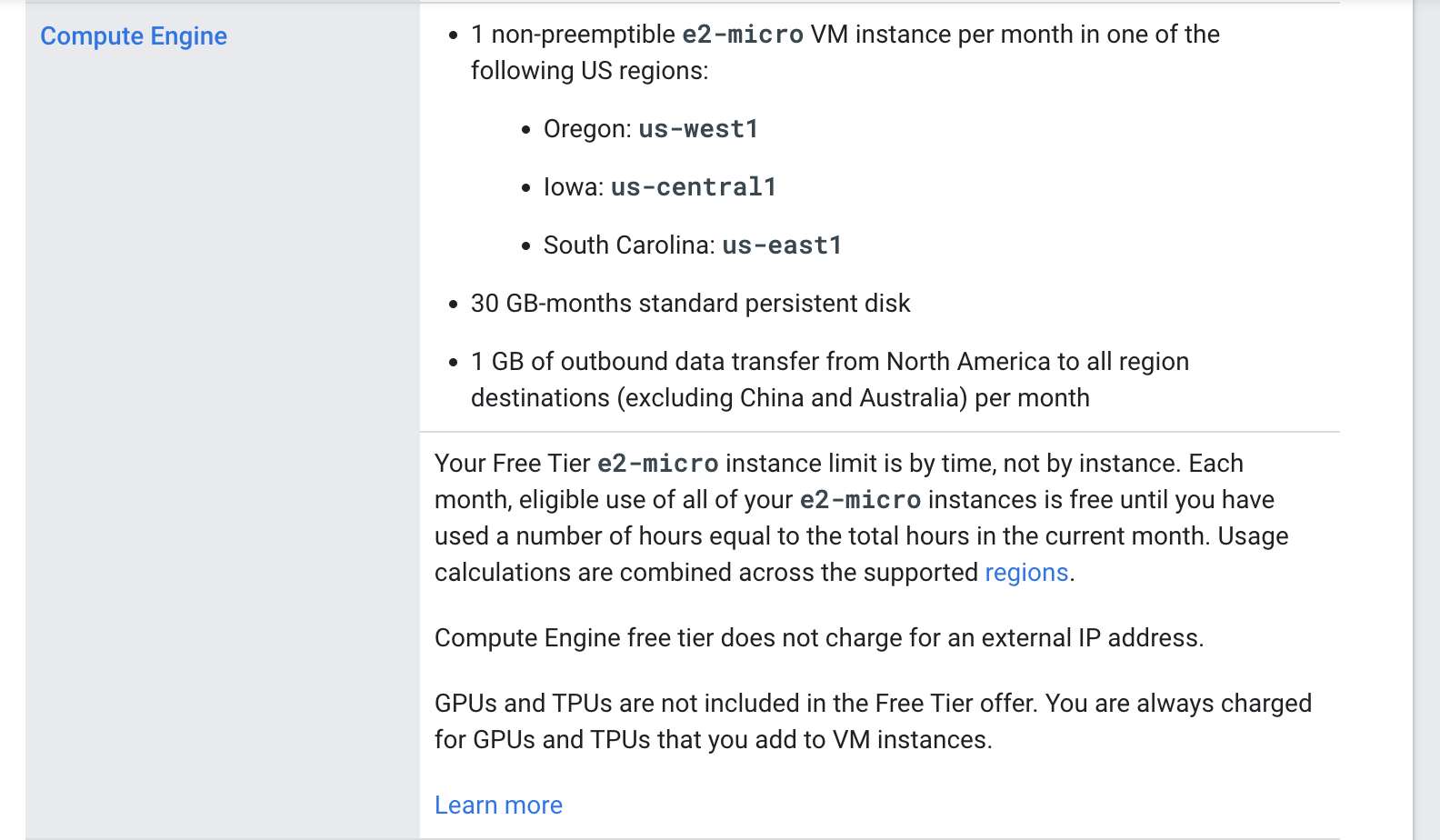
Here is a screenshot from their documentation as of 2024.
You can pick a free server located in the US with:
- 30 GB of disk space (non-SSD)
- 1 GB of outbound data transfer
- 2 vCPU with shared usage (you only get a part of computational power)
This is enough to run a WP BOX for testing, however, do not use free tier in production!
Performance
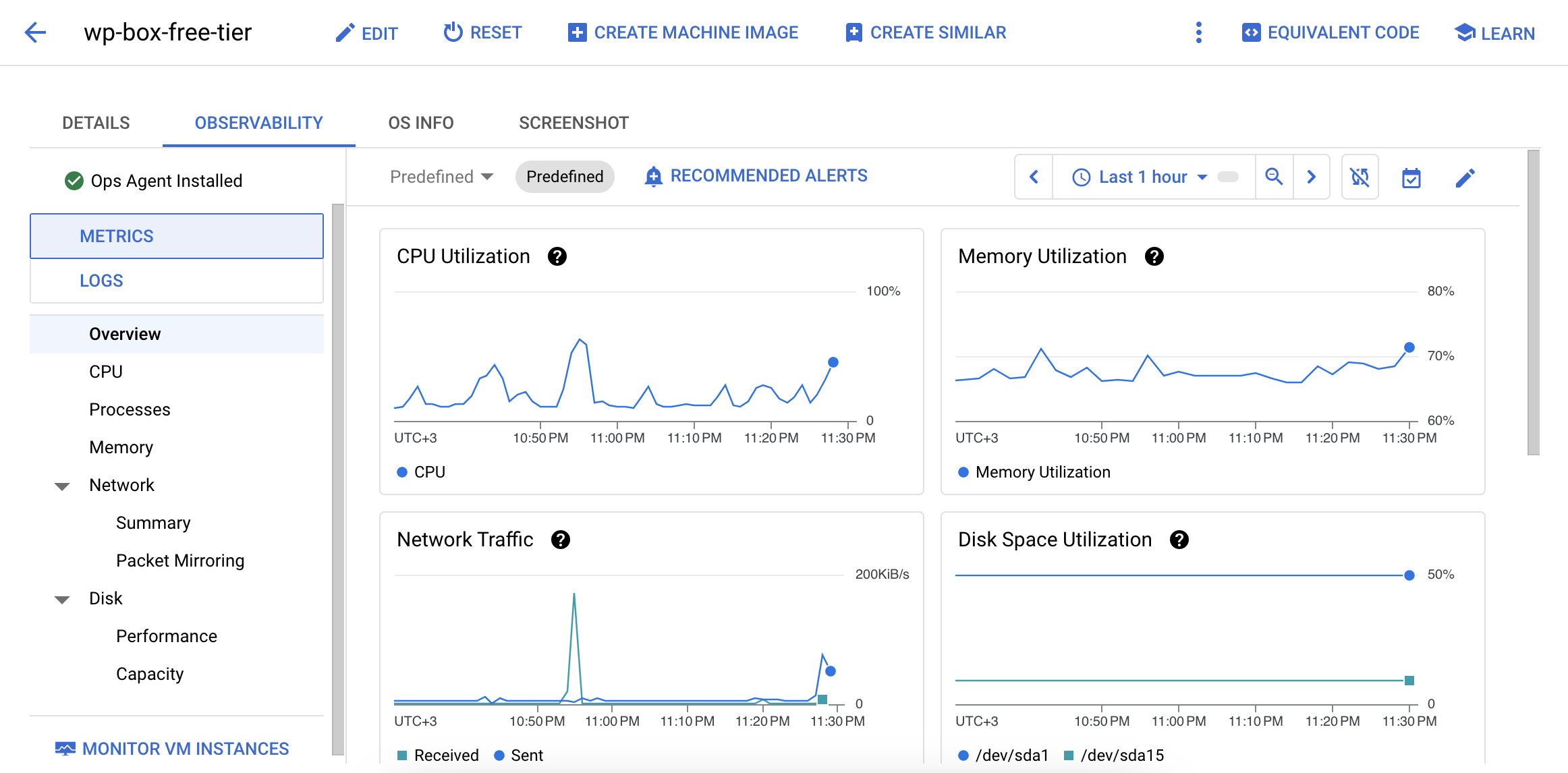
WP BOX performs well on a free tier e2-micro machine, effectively allowing you to use it as a test server.
Known issues
- WP BOX uses notable amount of memory, which can eventually grow even more as Redis will start to take memory for caching. Besides there might be other memory leaks, that can sometimes lead to out of memory issues.
- Shared vCPU seems to be unavailable sometimes and can lead to unresponsive VM, which is only fixed by stopping and restarting the instance.
- Non-SSD persistent disk is a lot slower then SSD disk, and you might feel like website is slower to load sometimes (nginx and php work with filesystem a lot, and it matters to have a SSD disk)
- Limits to outbound transfer can also lead to VM being unavailable from outside of Compute Engine Console.
- All of the above can eventually be triggered by various bots visiting websites in the internet, so you might want to put on a basic authorization or shut down the instance when not directly testing.
- Docker Images are building very slow on free VM, might take 30+ minutes
Enabling SFTP and SSH access
You can add SSH keys from the UI when editing VM settings. Google will add the user to the machine, make sudo available for the user and add provided key to /home/<username>/.ssh/authorized_keys
You can further tweak VM to allow root SSH access and SFTP access. Make sure to get nano or CLI editor of your choice. On Debian it can be done with apt-get update followed by apt-get install nano (also it can be available by default)
To enable root SSH access, you will need to edit /etc/ssh/sshd_config with root privileges.
So sudo nano /etc/ssh/sshd_config will get you there.
In this file you will have to uncomment or add the following lines:
PermitRootLogin yes
StrictModes yes
MaxAuthTries 3
PubkeyAuthentication yes
UsePAM yes
PasswordAuthentication no
KbdInteractiveAuthentication no
ChallengeResponseAuthentication no
TCPKeepAlive yes
Subsystem       sftp    internal-sftp
Next, go to your root directory cd /root/.ssh. Here you can manually add public key to /root/.ssh/authorized_keys file.
Last step would be restarting sshd service: service sshd restart
Connect Virtual Machine with Git
WP BOX should be run from non-root user, thus, make sure you have a user, that will be used for installation. Enter into /home/<your_user>/.ssh/ directory.
Next create or edit config file nano config:
Host github.com
        User git
        Hostname github.com
        PreferredAuthentications publickey
                AddKeysToAgent yes
                IdentityFile ~/.ssh/id_ed25519
If that user doesn’t have a default id_rsa private and public keys, you will need to generate them. There is a detailed guide here with all the nuances:
https://docs.github.com/en/authentication/connecting-to-github-with-ssh/generating-a-new-ssh-key-and-adding-it-to-the-ssh-agent
But in short, you just need to run this command: ssh-keygen -t ed25519 -C "your_email@example.com". Make sure to change the email to your GitHub user email. It will prompt for directory, specify your user’s .ssh directory if it is not there by default.
In some cases you might end up with loose permissions on your private key, run chmod 600 id_ed25519
Finally you will have to add the public part of the key into your GitHub account.