This page does not have a translation yet.

Building Custom Gutenberg Blocks in WordPress with WP BOX
As WordPress continues to evolve, the Gutenberg editor, introduced in WordPress 5.0, has become an integral part of the development ecosystem. Gutenberg allows developers to create rich reusable components, that provide great user experience in dashboard and on frontend of the site.
In this article, let’s walk through the process of building a custom Gutenberg block for WordPress with WP BOX.
What is Gutenberg?
Gutenberg is WordPress’s block editor, which replaced the traditional WYSIWYG editor a while back. Instead of working with shortcodes and custom page-level templates, developers can create reusable blocks of content, such as paragraphs, headings, images, banners, cards and others from large sections to small elements inside those sections.
Main advantages of Gutenberg blocks are:
- Inner blocks support. When you create a card block for example, you can define a fixed set of inner blocks or allow all blocks to be used inside without restrictions. A content manager is able to use different combinations inside, like show image with title, or show title with tags inside a card block, and thus a developer doesn’t have to create 10 different card block variations.
- Independence by design. A block is not dependent on other essences, like current page or parent block, and it won’t unexpectedly behave differently when you use it in a different parent block or different page. Though you can make it dependant on data, optionally, and for example pass the background color of the parent block to inner block through props.
- Blocks are fast. Blocks perform well with 3 different cases. They are fetched quickly from the database with single query for an entire current page. They render and change states quickly when working in dashboard. And they can show great speed and performance on a frontend, if best practices are followed.
Why Create Custom Gutenberg Blocks?
While WP BOX offers a wide variety of Gutenberg blocks, there are situations where you may need to create custom functionality or design elements that aren’t available by default. Custom Gutenberg blocks allow developers to:
- Add unique functionalities that are tailored to the needs of a client or project.
- Provide reusable, consistent design components.
- Simplify content creation for non-technical users by pre-configuring custom blocks.
- Integrate dynamic content or third-party services directly into the editor.
Prerequisites
Before diving into creating a custom Gutenberg block with WP BOX, you should have:
- Basic knowledge of JavaScript and React.
- Basic knowledge of PHP as the frontend render is done with it.
- Familiarity with WordPress development.
- WP BOX installed, you may follow this installation guide.
Step-by-Step Guide to Building a Custom Gutenberg Block
1. Structure and code samples
Custom blocks are usually created as a plugin which can be used with any theme. But with WP BOX we are going to use a pipeline for Tailwind compilation, centralized block registration and enqueue. Those blocks will only be used by WP BOX, thus we will create a new block inside a theme folder.
You need to create a new directory block-name and at least three files in web/app/themes/wp-box/blocks directory with a sample boilerplate code:
{
	"$schema": "https://schemas.wp.org/trunk/block.json",
	"apiVersion": 3,
	"name": "wp-box/block-name",
	"title": "Block Name",
	"category": "layout",
	"icon": "admin-users",
	"attributes": {
		"richText": {
			"type": "string"
		}
	}
}This file follows WordPress schema, we just need to use a unique name at the very least. User-editable fields are created as “attributes”. In this example we are creating a custom attribute named “richText”, that will be editable in editor and appear on the frontend.
<!-- block-name -->
<?php
$rich_text = ( $args['attributes']['richText'] ?? 'Block Name' );
?>
<div class="text-wrap p-4 php bg-theme-light-blue p-20 rounded-md text-heading-desktop text-center">
    <?php echo wp_kses_post($rich_text); ?>
</div>
This is a template code, that will render the block on frontend. Note the Tailwind classes here. A variable $args from the parent scope is passed to the render.php, you can print_r($args), to see it’s data.
In our example, we will need the “richText” value, that would be provided by user in editor.
import { registerBlockType } from '@wordpress/blocks';
import metadata from './block.json';
import {
	RichText,
	useBlockProps,
	BlockControls,
} from '@wordpress/block-editor';

registerBlockType( metadata, {
	edit: BlockEdit,
	save: BlockSave,
} );

function BlockEdit( props ) {
	const {
		isSelected,
		attributes: { richText },
		setAttributes,
	} = props;

	const blockProps = useBlockProps( {
		className: 'bg-theme-light-blue p-20 rounded-md text-heading-desktop text-center',
	} );

	const onChangeText = ( value ) => {
		setAttributes( { richText: value } );
	};

	return (
		<div { ...blockProps }>
			{ isSelected && <BlockControls /> }
			<RichText
				tagName="span"
				value={ richText }
				onChange={ onChangeText }
				placeholder="Button Text"
			/>
		</div>
	);
}

// eslint-disable-next-line no-unused-vars
function BlockSave( { attributes } ) {
	return null;
}
Let’s break down the code here:
registerBlockType: This function registers your custom block with WordPress.edit: The function responsible for rendering the block within the Gutenberg editor.save: Defines how the block content is saved in the database.
What happens inside the BlockEdit function is that we create a RichText component, add support for toolbar appearance when block is selected, duplicate the classes we are using on frontend to have same block appearance in the editor, and handle the changes to the RichText component.
2. Compiling React and Tailwind
Once you have a directory with at least three files, you can initiate a compilation pipeline by calling a Makefile command from a root directory of a project:
make startThis command triggers the Tailwind and React compilation, CSS styles will appear in the main styles files at web/app/themes/wp-box/styles/dist/tailwind.css, and React code will be compiled into javascript files in the same directory.
3. Registering and enqueueing block
This part is handled automatically by theme, it parses all the block.json files in the subdirectories of the theme folder and registers blocks and their assets where applicable.
At this point you can visit the block editor and try adding your new block.
Testing New Custom Block
If you followed the steps above, you should be able to add your new custom block inside an editor. To find it, start typing “Block Name”, that we gave our new block.
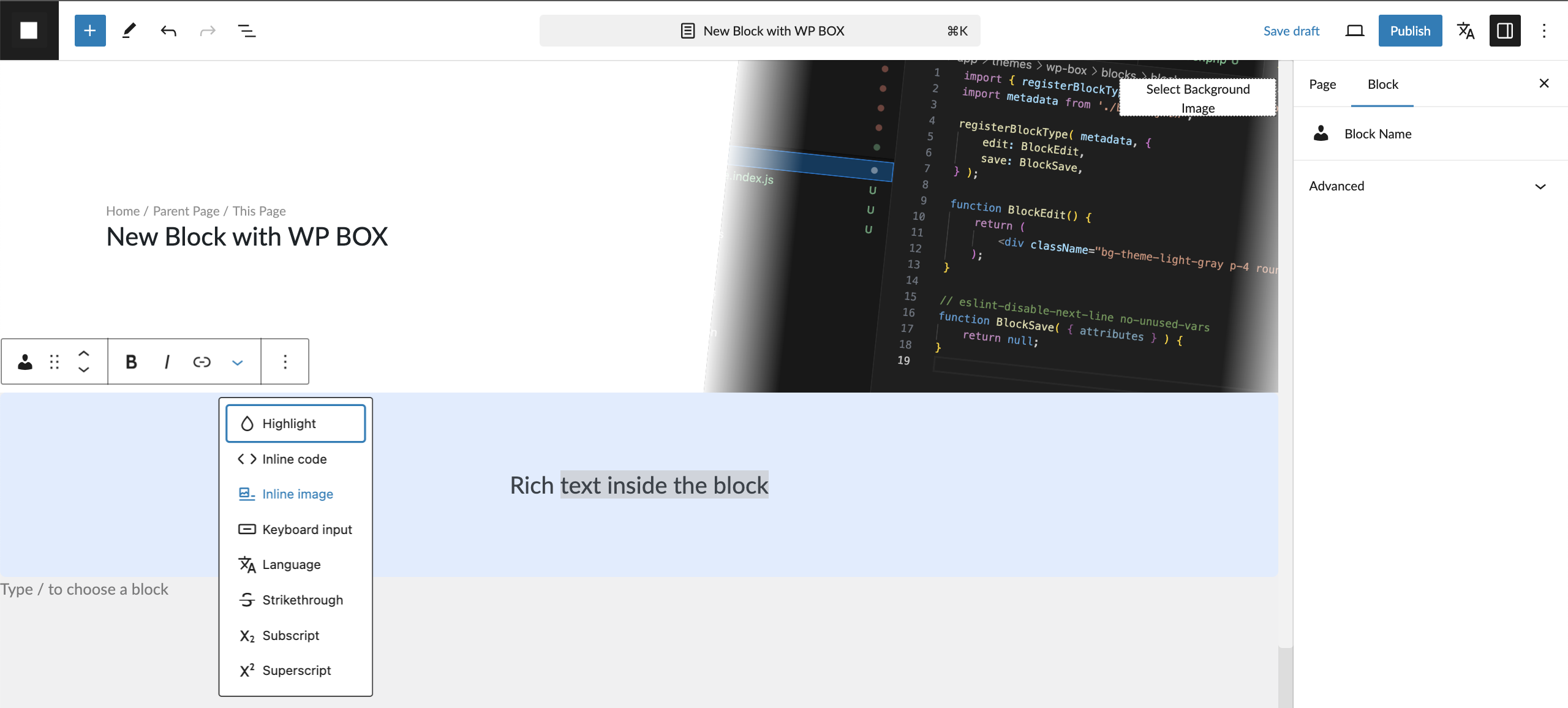
This is how final result will look in the editor:
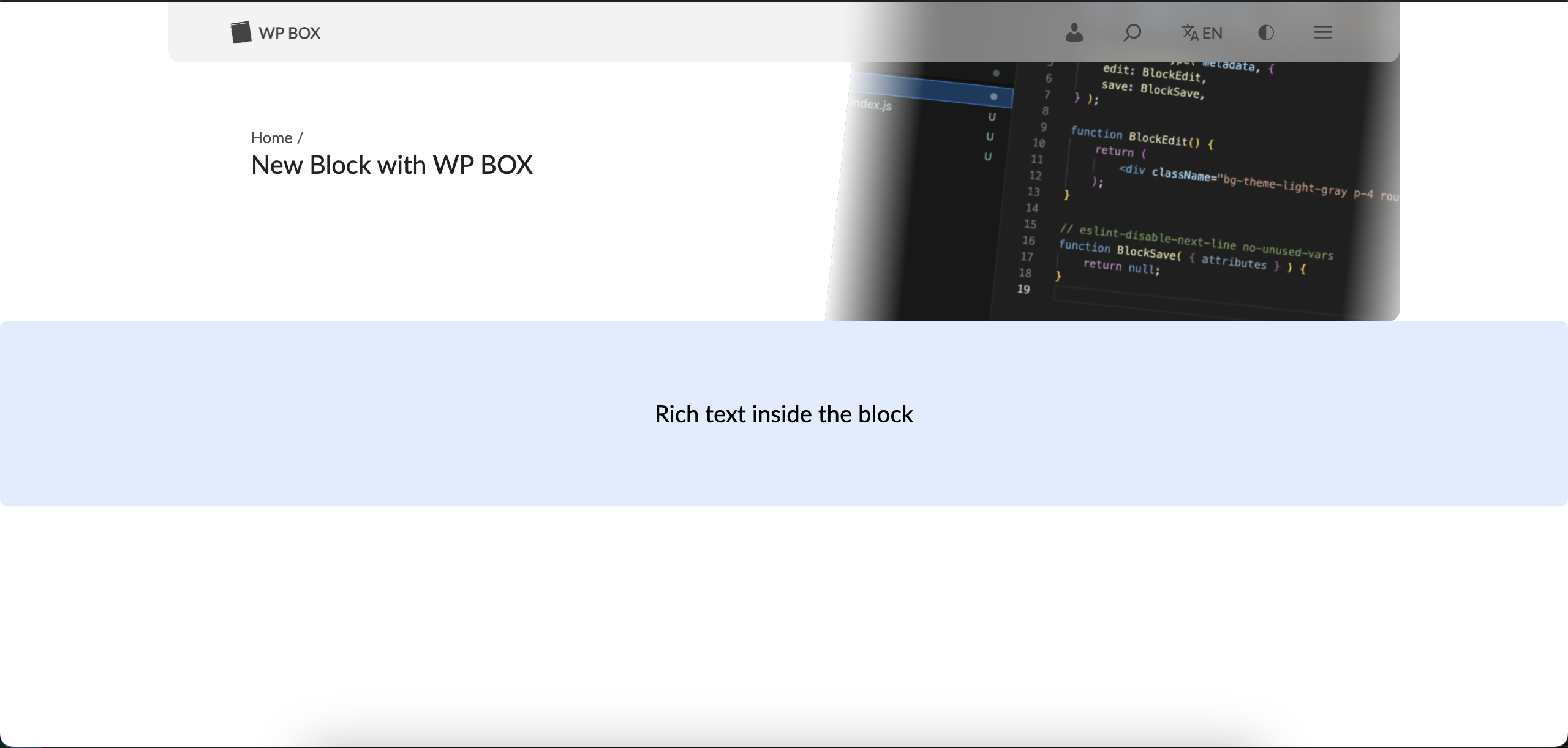
And this is how it will look on the frontend:
Conclusion
Creating custom Gutenberg blocks offers developers a powerful way to extend WordPress’s capabilities, providing site owners with highly tailored tools for content creation.
By mastering Gutenberg block development, you can deliver unique solutions with ease.