
Advanced Breadcrumbs in WordPress
In this article, I want to talk about breadcrumbs — a navigation element on websites that helps users quickly move up a level in the page hierarchy. This is especially useful because it’s not always obvious which section of a site a page belongs to.
For example, on this website, there is a separate blog section with long articles like this one, and there is a section with brief notes about code updates, which I write only in English. From any article, you can use breadcrumbs to return to the full list of articles, and from any update, you can return to the list of updates.
So, basically, breadcrumbs are a simplier menu, which is used to navigate between child and parent pages.
Why are they called breadcrumbs?
The name comes from the Brothers Grimm fairy tale “Hansel and Gretel,” where the children, while wandering into the forest, left a trail of breadcrumbs to find their way home. On websites, the first element of the breadcrumb trail is the home page, which is often referred to as “Home.”
Where breadcrumbs are used
Breadcrumbs are typically placed at the top of the page, though less frequently, they may also appear at the bottom. Some sites place them in both locations to allow users to navigate to a parent page after reading long text, without needing to scroll all the way back to the top.
Exceptions
- Home page: Since the only navigation would be back to itself, breadcrumbs are unnecessary.
- Landing pages for specific topics: These pages may have a different design and may not relate to the home page, so breadcrumbs may not apply.
- Second-level pages: It’s optional. On the one hand, breadcrumbs would only lead back to the home page, which might not be very helpful. On the other hand, having breadcrumbs on such pages can indicate that it is a second-level page, which could be useful in some cases.
Combining breadcrumbs with URLs
For a good user experience, breadcrumbs should match the site’s URL structure. It’s recommended that together with breadcrumbs a custom URLs structure is implemented, which looks like that: https://domain/parent-page/current-page/.
For WordPress sites with custom post types, it’s recommended to create a page that matches the post type’s slug.
This might require adding custom rules in wp_rewrite.
Taxonomies and tags are generally not included in URLs because they act as auxiliary parent pages, not the main ones. Additionally, taxonomies and tags can be tied to multiple post types, and a single post can have several taxonomies. To avoid overcomplicating things, it’s better to have a dedicated parent page for each post type, rather than using built-in archives.
Generating breadcrumbs
To minimize manual work, breadcrumbs should be generated automatically. You can either write your own solution, as I did with WP BOX, or use an existing tool.
In most ready-made solutions, there is an interface for setting up rules. If you write your own solution or use WP BOX breadcrumbs, the rules are set in the code and edited by the developer.
To generate breadcrumbs, you’ll need to account for the various entities in WordPress, as not every entity has parent pages by default. Additionally, each entity has a different way of retrieving title and URLs for breadcrumb elements. Here’s an example of how I handle this in WP BOX:
<?php
$object = get_queried_object();

if ($object instanceof WP_Post) {
	$object_type = 'post-type';
	$current_page_title = $object->post_title;

	if ($object->post_type !== 'page') {
    //
	} else {
    //
	}
} else if ($object instanceof WP_Term) {
	//
} else if ($object instanceof WP_User) {
	//
} else {
	//
}
Depending on the object types and the logic you’ve written, you need to extract several names and URLs for display, and implement conditional logic for pages with and without parent pages. Finally, you need to write a markup code for the breadcrumb element.
The full WP BOX breadcrumb implementation can be found in the project’s code.
Breadcrumbs and microdata
It’s a good idea to add microdata attributes to the HTML markup of breadcrumbs. This helps search engines better understand the element and could indirectly influence SEO. At the very least, properly marked-up breadcrumbs, like some other elements, are displayed in Google Search Console’s “Enhancements” section. Here’s an example from another project of mine:
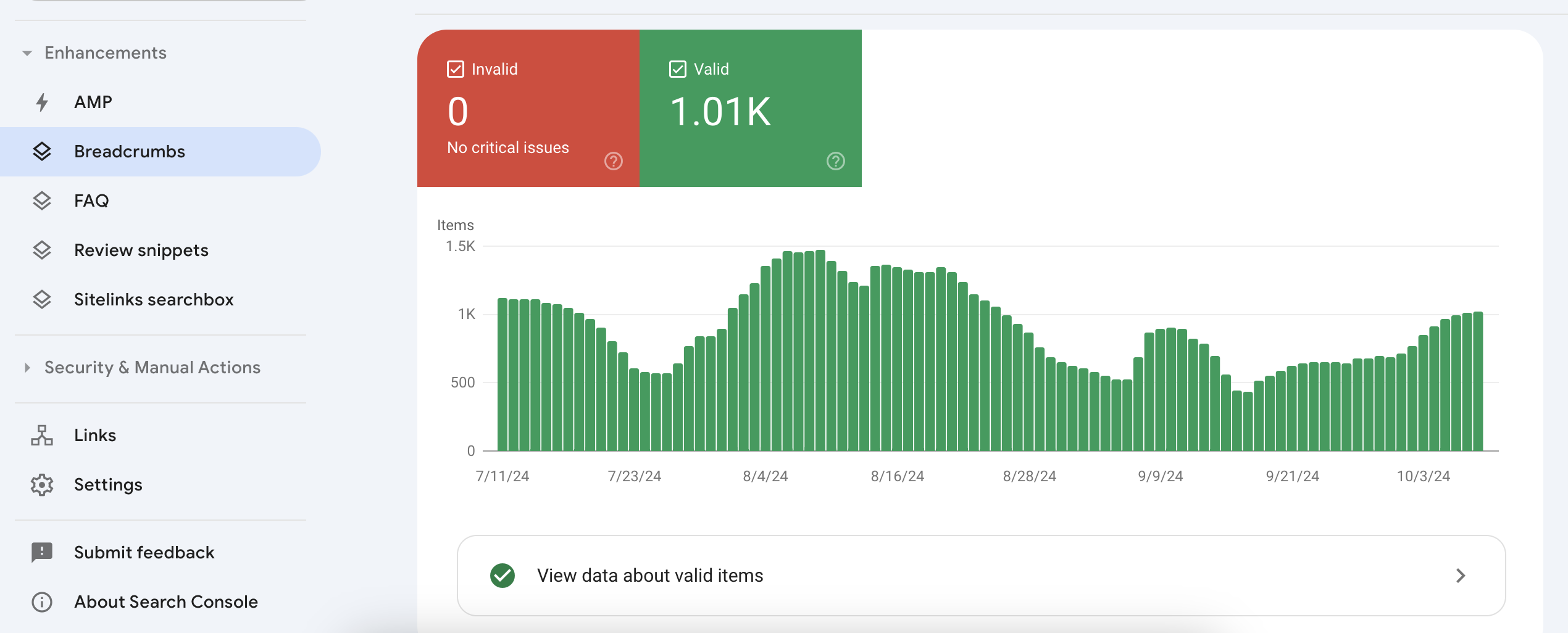
One reason I don’t use well-known SEO plugins is that they don’t offer (or I haven’t found one that does) the ability to control microdata and don’t add it by default.
You can check the microdata for breadcrumbs using the markup validator: https://validator.schema.org/.
Microdata slightly complicates the structure because you’ll need to add attributes and metadata. Since an HTML element can’t have multiple identical attributes, you’ll need to create a structure where different itemprop attributes of a single element are implemented through nested <meta> and <span> elements.
<nav itemscope="" itemtype="http://schema.org/BreadcrumbList">
 <ul>
  <li itemprop="itemListElement" itemscope="" itemtype="http://schema.org/ListItem">
   <a itemprop="item">
    <span itemprop="name"> </span>
   </a>
   <meta itemprop="position">
  </li>
 </ul>
</nav>